
AppControl’s Efficient Mode and Upcoming Pause Feature Explained
Keeping an eye on your PC’s performance should not come at the cost of that performance. We built AppControl with that exact concern in mind, because we originally created it for our own PCs, and performance is extremely important to us.
First, AppControl is designed to stay lightweight in everyday use. The app only uses the GPU when you are actively viewing the AppControl interface and interacting with the graphs. When AppControl is minimized to the system tray, its resource usage is kept as minimal as possible so it can quietly collect resource usage information in the background without affecting your work or gameplay.
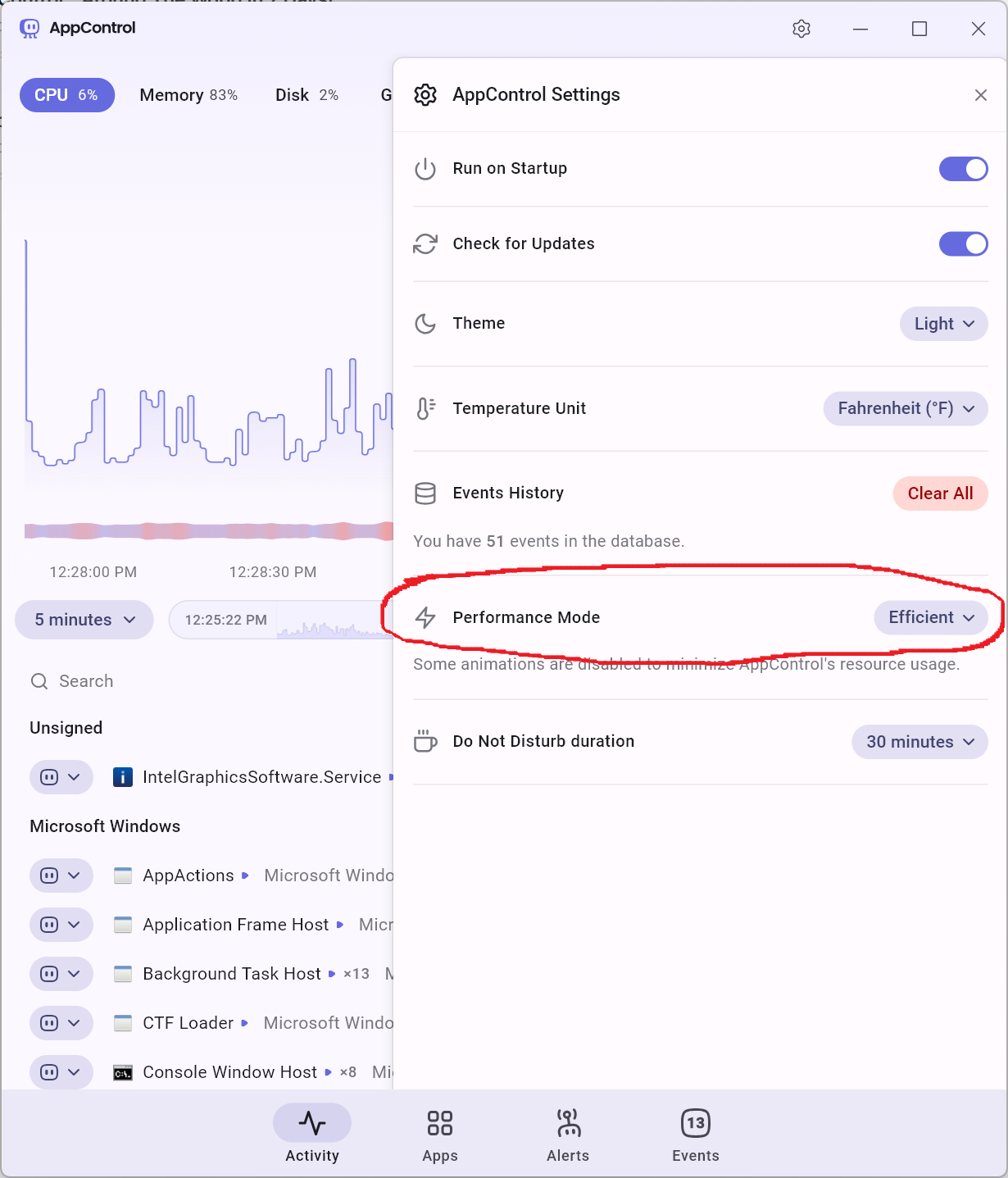
If you are especially sensitive to background resource usage, there is a simple setting that can help. Click the cog icon in the top right corner of the AppControl window and switch to the “Efficient” mode. This mode makes the live graph a bit less fluid, but it reduces overall resource usage. Many users find this a great balance when they want continuous resource monitoring with an even lighter footprint.
We also understand that some users occasionally need every last bit of CPU, GPU, and memory for a demanding task such as gaming, rendering, or benchmarking. For those situations, we will soon have a dedicated “Pause” mode. When enabled, AppControl will temporarily stop all monitoring activity and use no resources at all until you unpause it. The tradeoff is that no resource usage history will be collected during that time, but it gives you a clean way to free up every available resource whenever you need maximum performance.
Why Does AppControl Use Any Resources?
Windows Task Manager, which uses some Windows resources when opened, is excellent at showing what is happening right now. AppControl goes further by recording what happened before, why it happened, and which app was responsible. That additional visibility requires a small amount of ongoing monitoring that Task Manager does not perform.
AppControl continuously monitors historical CPU, GPU, memory, disk, and temperature data so you can scroll back in time and see exactly what caused a spike or slowdown. It also provides plain-language explanations of processes, real-time alerts when new or unusual apps run, and notifications when apps access your webcam, microphone, or location. On top of that, AppControl allows you to disable or block problematic apps and create custom rules to stay in control of your system.
These features are the reason AppControl can answer questions that Task Manager cannot, such as “What maxed out my GPU 10 minutes ago?” or “Which app accessed my microphone earlier?” That deeper level of insight requires a small amount of continuous background work, but we work hard to keep that overhead as low as possible.
Our goal is simple: give you powerful insight into your system without getting in the way of it. With Efficient mode today and Pause mode coming soon, AppControl stays flexible so you can decide exactly how much overhead you want at any given moment.