
Why Is My PC Fan So Loud When I’m Not Doing Anything?
You aren't running a game or watching a video. Maybe you aren't even sitting at your PC. So why does your computer suddenly sound like it's preparing for takeoff?
A loud PC fan usually means something is generating heat, and that often means your CPU or GPU is doing more work than you realize. The problem is figuring out what caused it, especially when the fan becomes quiet again before you have a chance to investigate.
Why Is My PC Fan Running So Hard?
There are plenty of legitimate reasons your PC might suddenly become busy in the background.
Windows Update could be installing something. Your antivirus software might be running a scan. A browser, game launcher, cloud storage app, search indexer, or another background program could also suddenly start using your CPU, GPU, or disk.
Sometimes it only lasts a few seconds. Other times it might continue for several minutes while your PC is sitting idle.
Higher CPU or GPU usage creates more heat, and your cooling system responds by spinning the fans faster.
Of course, constantly loud fans can also indicate dust, poor airflow, a failing cooling system, or another hardware problem. But before opening your PC with a screwdriver, it's worth checking whether software is responsible.
Check Windows Task Manager First
The quickest place to look is Windows Task Manager.
Press Ctrl + Shift + Esc and sort the Processes list by CPU, GPU, Memory, or Disk usage.
If an application is currently consuming a large amount of resources, Task Manager may immediately show you what's responsible.
But there is a problem. Task Manager is mostly useful for seeing what is happening right now.
If your fans were roaring five minutes ago and everything has already returned to normal, the process that caused it might be impossible to identify.
That's exactly the problem that originally inspired us to build AppControl.
What Was Using My CPU Earlier?
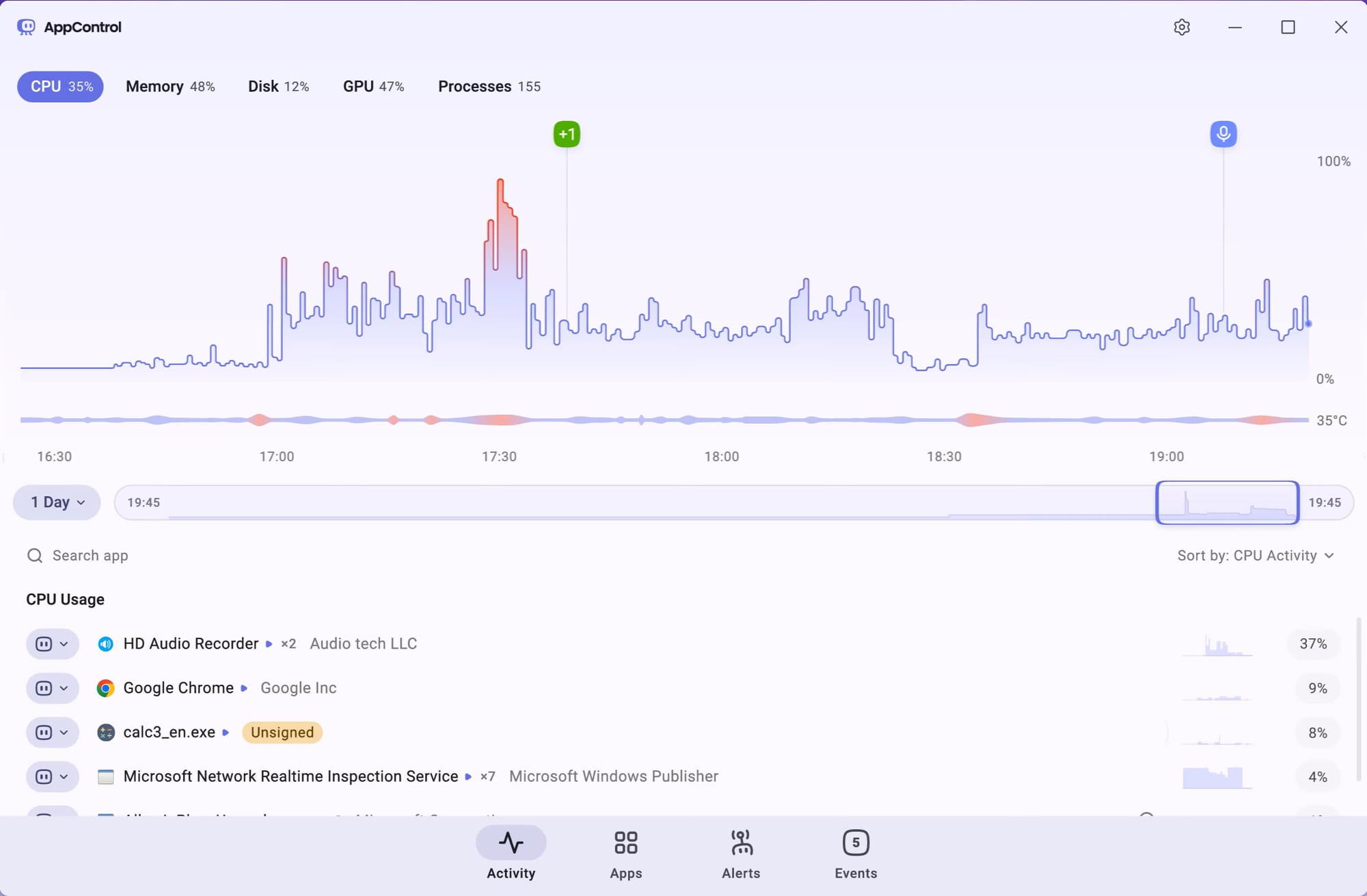
AppControl is a historical Task Manager for Windows that continuously tracks CPU, GPU, memory, disk activity, and CPU/GPU temperatures.
Instead of trying to catch a mysterious process while it is happening, you can simply go back to the time when your PC fan became loud.
Open AppControl and find the spike on the CPU, GPU, Disk, or temperature graph.
You can click and drag across the graph to zoom into that exact period and see which applications were consuming resources at the time. So, if your fan suddenly started roaring at 2:15 AM, you can look at 2:15 AM instead of waiting for the same annoying behavior to happen again.
Download AppControl for free and start keeping watch on what your Windows PC is actually doing.
Was My PC Overheating?
Fan noise doesn't always mean your PC is overheating, but it's important to check so you're sure your PC hardware isn't getting damaged.
AppControl keeps historical CPU and GPU temperature data alongside your resource usage history. That means you can see whether the temperature actually increased when your fans became loud and then look at what was using your hardware at the same time.
For example, you might discover that Windows Update pushed CPU usage and temperatures higher while your PC was idle, or that a game launcher started updating something in the background.
Instead of guessing, you can use AppControl to correlate the temperature spike with the applications that were active when it happened.
What Happened While My PC Was Idle?
This is where historical monitoring becomes particularly useful. Your PC can perform plenty of background work while it is locked or while you're away from your desk.
AppControl tracks idle periods along with system activity, so you can see what your PC was doing while nobody was using it.
That makes it much easier to answer questions like:
"What was using my CPU while I was away?"
"Why was my computer hot when I came back?"
"What caused my fans to start running in the middle of the night?"
"Did a new background application start running?"
AppControl currently keeps up to 72 hours of detailed system history, giving you time to investigate something that happened overnight or even a couple of days ago.
Or Just Ask Your PC What Happened
If you prefer an easier way to investigate, AppControl also has an optional MCP integration that lets compatible AI tools read your locally collected AppControl history.
With the AppControl free AI MCP integration could simply ask:
"My PC fan was really loud around 2 AM last night. Was my PC overheating, and what was running at the time?"
The AI can examine AppControl's historical resource usage, temperature information, processes, and idle periods and help explain what happened.
The MCP integration is completely optional and off by default. You have to manually enable it and connect your own compatible AI tool before it can access any AppControl data.
If AI isn't your thing, leave it turned off and use AppControl normally.
Found the Problem? Take Control of It.
Finding the process is only half the battle. AppControl also gives you information about the executable, including its publisher and a plain-English App Insight that can help explain what the program actually does.
If you determine that an unwanted application is causing the problem, you can kill the running process or disable the executable so it can't keep starting again.
Use some caution here. Don't disable Windows components or unfamiliar system software unless you understand what they do. If you don't need the app, go to add/remove programs and uninstall it that way before disabling it.
But, the next time your PC fan suddenly starts roaring for no obvious reason, you don't have to sit there staring at Task Manager hoping to catch the culprit.
Let AppControl record what happened, then go back and find it.
Download AppControl free and find out what's really running on your Windows PC.