
Why Is My Webcam Light On? How to Find What’s Using Your Camera in Windows 11
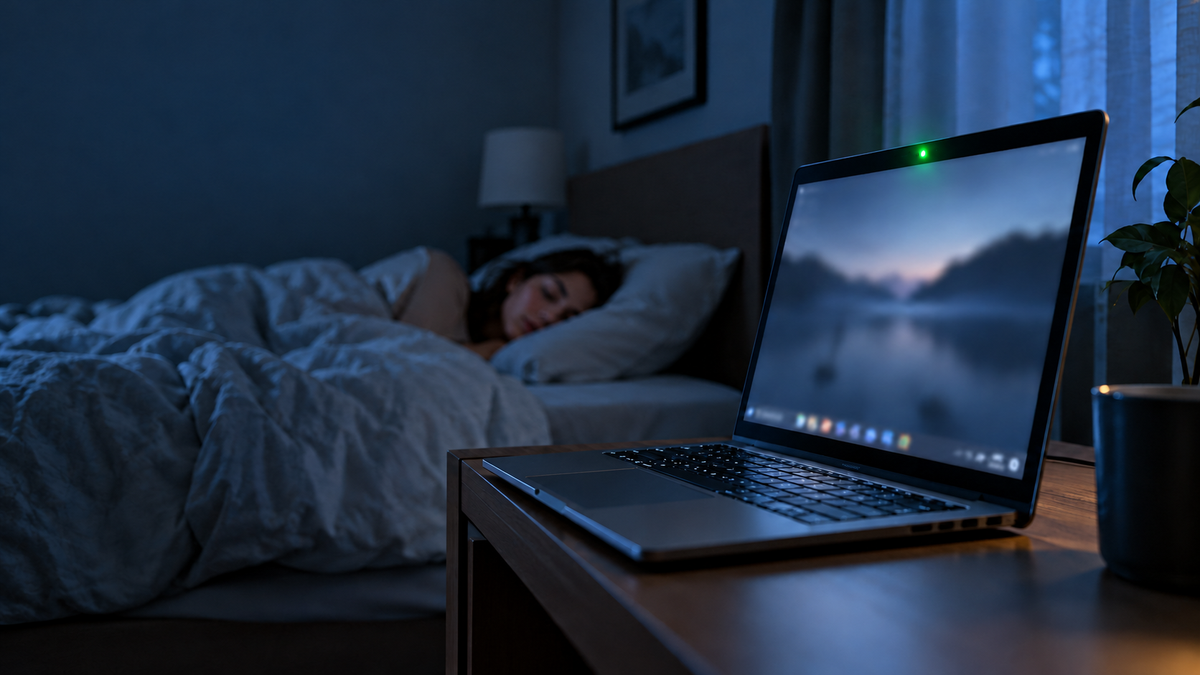
You’re not on a video call. You didn’t open the Camera app. But suddenly that little light next to your webcam is glowing.
So what is using your camera?
There are plenty of harmless reasons for a webcam to turn on, but unexpected camera activity is still something worth checking. Windows can help you investigate what has permission to use your camera, and AppControl can go a step further by keeping a history of which apps actually accessed it.
Why Is My Webcam Light On?
On most Windows PCs with a camera indicator light, the light turns on when the camera is active.
The cause could be something completely normal. Microsoft Teams, Zoom, Discord, a browser tab, Windows Hello, recording software, or another application may have opened the camera.
Sometimes an application can also remain active in the background longer than you expect.
If you know exactly what you were doing when the light came on, there may be nothing to worry about. But if the camera suddenly turns on while you are not using anything that should need it, it makes sense to find out why.
Check Your Windows Camera Privacy Settings
Windows 11 gives you some useful controls for deciding which apps can use your camera.
Open:
Settings > Privacy & security > Camera
Here you can see whether camera access is enabled and control access for supported applications.
Microsoft Store apps can generally be controlled individually. Traditional Windows desktop applications work a little differently, and Windows provides a broader setting called Let desktop apps access your camera.
Microsoft has official instructions explaining these camera privacy settings in more detail.
This is a good first place to check if you notice unexpected webcam activity.
The Problem: What If the Camera Light Already Turned Off?
This is where things get more frustrating.
Imagine your webcam light suddenly turns on. Before you can figure out what is happening, it turns off again.
Now you open Windows Settings, look through Task Manager, and everything seems normal.
What used the camera five minutes ago?
What about last night?
What if the camera was accessed while you were away from the PC?
Windows does provide some information about applications that have interacted with your camera, but Microsoft also notes that desktop applications do not always behave like Microsoft Store apps. Some desktop apps may not appear in the normal privacy lists, and certain applications can access hardware differently.
This is where having an actual history of your PC activity becomes useful.
See Which Apps Used Your Webcam With AppControl
AppControl keeps track of privacy-related activity on your Windows PC, including applications accessing your webcam, microphone, and location.
Open the Changes section in AppControl and you can review these events after they happen.
That means you do not have to catch an application while the little camera light is still glowing.
If something accessed your webcam earlier in the day, AppControl can help you see which application was responsible and when the event happened.
This is especially useful for those strange situations where you notice something for just a few seconds and then it disappears before you have a chance to investigate.
Download AppControl free at AppControl.com and start keeping a history of what applications are doing on your Windows PC.
Get an Alert the Next Time Your Webcam Is Accessed
You can also have AppControl alert you when an application accesses your webcam.
AppControl's Alerts section lets you choose which types of PC activity you want to know about. Privacy-related alerts can notify you when an application accesses your camera, microphone, or location.
So instead of noticing the webcam light and wondering what caused it, you can get an alert identifying the application responsible.
You can then investigate the app, see what it is, and decide whether its behavior makes sense.
And if you do not want constant notifications, AppControl lets you decide which alerts appear on your desktop and which activity is simply recorded inside the app.
What Is This Weird App Using My Camera?
Sometimes finding the executable only creates another question.
You might discover that something mysteriously called helper.exe, or another unfamiliar program accessed the camera.
Now what?
AppControl shows information about applications and executables running on your PC, including the publisher and a plain-English App Insight designed to help explain what the program actually does.
That can make it much easier to determine whether the camera activity came from your browser, video conferencing software, a hardware utility, or something else running in the background.
You can also see other events associated with the same application, like microphone access or location access.
Don't Want the App Running? Take Control of It
If you identify an application you do not want running, AppControl gives you more options than simply ending the task.
You can kill the running process or disable the executable so it cannot start again.
Use some caution here. If you do not recognize an application, investigate it before disabling it. Windows contains plenty of legitimate system processes with names that are not particularly friendly or obvious.
And if it is a normal application you simply no longer want, uninstalling it through Windows Installed Apps is usually the best first option.
Your Microphone Can Have the Same Problem
The same privacy concern applies to your microphone.
Windows displays a microphone icon in the notification area when an application is actively using it, and microphone permissions can be reviewed under:
Settings > Privacy & security > Microphone
AppControl keeps track of microphone access too.
So if you ever notice the Windows microphone indicator unexpectedly appear and disappear, you can go back through AppControl's Changes history and investigate what happened.
Or Just Ask What Used Your Webcam
AppControl also includes an optional open source MCP integration that lets you connect a compatible AI tool to the historical system activity AppControl makes available.
You could ask:
"What applications accessed my webcam or microphone over the last three days, and did anything access them while my PC was idle?"
The AI of your choice can then examine AppControl's historical data and help you identify unusual activity without manually digging through the events yourself.
This feature is completely optional and turned off by default. It only works if you manually enable it and connect your own compatible AI tool.
If you do not want AI involved, simply leave it off. Everything else in AppControl works normally.
Your Webcam Shouldn't Be a Mystery
There are plenty of legitimate reasons for your webcam light to turn on.
What matters is being able to find out which application was responsible, especially if the light turns off before you can investigate.
Windows gives you useful controls for managing camera permissions. AppControl adds the history, alerts, and application information that can help explain what actually happened.
So the next time that little camera light suddenly comes on, you do not have to wonder what was watching.
Download AppControl free at AppControl.com and start keeping track of what applications are really doing on your Windows PC.