
How to Disable AI in Windows 11 (And Keep It Off)

Some people love AI, while others would rather not have it running on their PC at all due to privacy, performance, or security reasons. Unfortunately, Windows 11 doesn't have a single simple switch to turn every AI feature or app off. If you want an AI-free, or at least much less AI-heavy PC, here are the simplest places to start.
Remove Copilot From Windows 11
Microsoft Copilot is an AI assistant built into Windows and other Microsoft products that can answer questions, generate content, and help with tasks. Microsoft now allows the Copilot app to be removed directly from Windows 11, and they've made it easier to disable than it used to be.
Open Windows Settings > Apps > Installed apps.
Find Copilot, click the three-dot menu next to it, and select Uninstall. That's all there is to it if you have an up to date Windows 11 version.
Microsoft has its own official instructions for removing Copilot which also includes a Powershell script for IT administrators.
Chrome Has AI Features Too
Removing Windows AI doesn't necessarily mean you've removed AI from your PC.
Google Chrome can download generative AI models directly onto supported computers and also includes features such as Gemini in Chrome.
To disable Chrome's local AI models, open:
Chrome > Settings > System > On-device AI > Turn On-device AI off.
Google says this removes the downloaded generative AI models and prevents Chrome from downloading them again while the setting remains disabled. There is one important catch: Google also says some Chrome AI features do not depend on these local models.
If Gemini in Chrome is available on your PC, also check: Chrome > Settings > AI innovations > Gemini in Chrome
You can turn off its browser and Windows system tray shortcuts and remove permissions you don't want it to have.
Google provides official instructions for both of these settings.
Want a Browser With a Bigger AI Off Switch?
Firefox has taken a different approach. Firefox is a free web browser from Mozilla that focuses on user choice, privacy, and customization.
Recent versions of Firefox include an AI Controls section with a setting called Block AI enhancements.
Go to: Firefox > Settings > AI Controls > Block AI enhancements
Mozilla says this blocks current generative AI features (including the recent new AI features from Mistral), future AI enhancements, and prompts promoting them. That makes Firefox worth considering if having a simple browser-level AI control is important to you.
But What About AI Software You Don't Know About?
This is where things get more complicated. Not every AI-related program has "AI" in its name.
A background executable might belong to an AI assistant, transcription engine, local language model, image tool, browser component, hardware utility, or another application that recently added AI functionality. Also, a Windows update or app update six months from now could introduce something that isn't on your PC today.
That's one of the reasons we built AppControl.
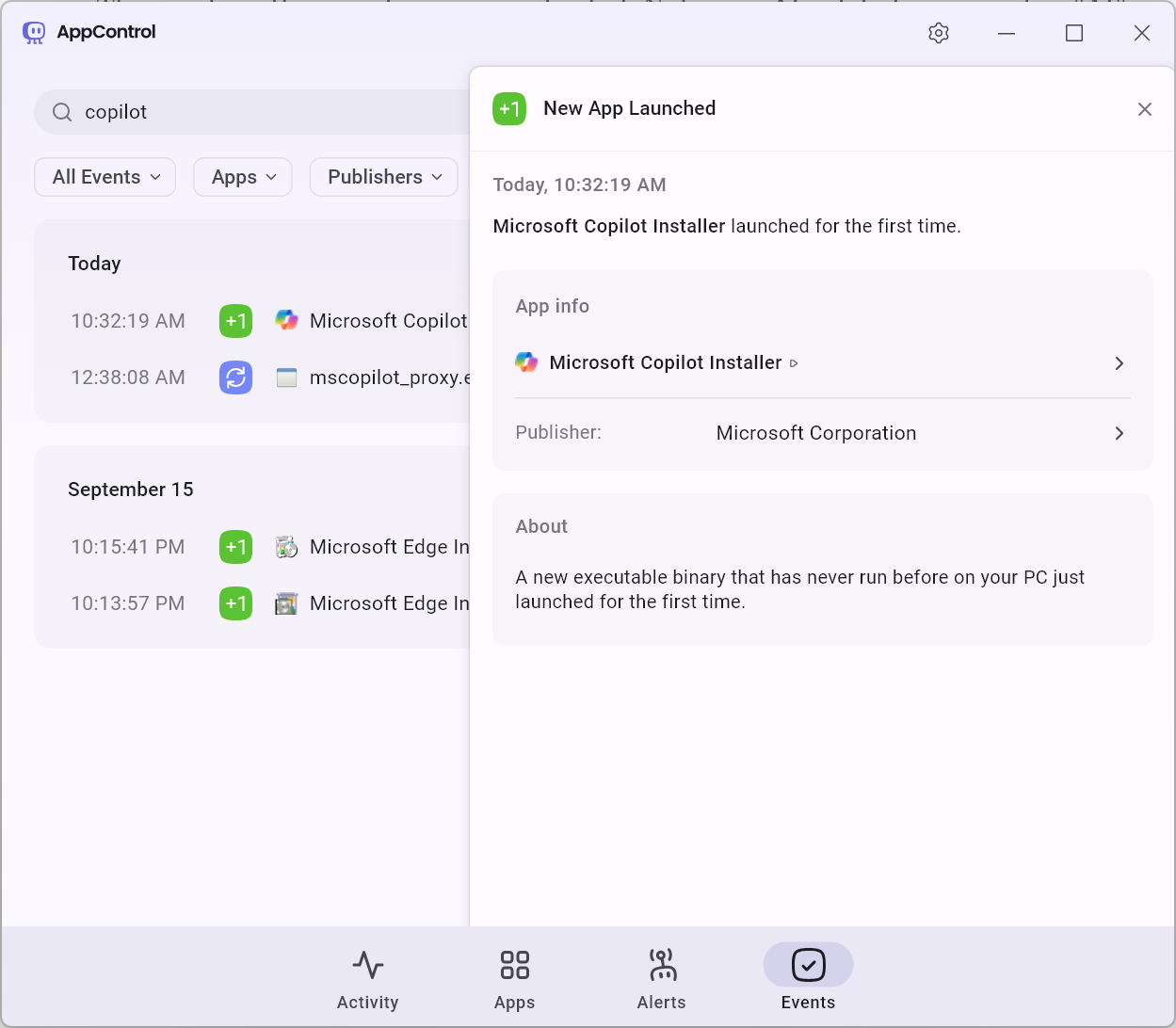
AppControl can alert you when a new or unusual application runs on your Windows PC for the first time. It also provides plain-English Insights explaining what applications, processes, and executables actually do.
So if something new suddenly appears, you don't have to stare at a mysterious filename and wonder what it is.
Download AppControl free and start monitoring what actually runs on your Windows PC.
Find It. Understand It. Disable It.
If you find software you don't want running, AppControl gives you more control than Windows Task Manager.
You can inspect the executable, see its publisher and AppControl Insight, kill the running process, or disable the executable so it cannot run again.
AppControl can also alert you when new apps appear or existing software changes, which makes it useful if your goal isn't just removing AI once, but keeping track of what gets added later.
Of course, use care before disabling Windows components or unfamiliar system processes. App Insights are designed to help explain software, but you should still verify anything important before disabling it.
Download AppControl and keep an eye on new software that can pop up unexpectedly on your PC.
Yes, You Can Even Use AI to Find and Remove AI
AppControl also includes an optional local-only MCP integration that lets you connect an AI tool such as Claude, Gemini, Cursor, OpenAI Codex, or another MCP-compatible assistant to the system resource usage historical data that AppControl has made available. MCP, or Model Context Protocol, is an open standard that lets AI tools securely connect to and use data from other apps and services.
If you wanted to try AppControl's MCP integration, you could ask something like: "Which applications and executables on this PC appear to contain AI, machine learning, generative AI, assistant, transcription, or local model functionality?"
The AI you connected to the MCP can help examine the software AppControl has seen, and point out things worth investigating. You can then review those items yourself and disable anything you don't want through AppControl. The AI integration is completely off by default, and local only so your data never leaves your PC, and it requires you install a separate AI to use it. Go to the AppControl settings to turn off the optional local MCP server when you're done.
If you don't want AI anywhere near AppControl or your PC, simply leave the setting off.
Keeping New AI Off Your PC
There probably won't ever be a permanent one-click way to remove every AI feature from a modern Windows computer. But, you can get pretty close.
Remove Copilot. Remove Recall if your PC has it. Turn off Chrome's on-device AI and Gemini features, or choose a browser with stronger AI controls. Then keep watching what actually gets added to your PC.
AppControl was built around a simple idea: it's your computer, so you should be able to see what's running, and decide what gets to stay.
Try AppControl and take back control of what's running on your Windows PC.